Welcome to Microsoft Office 2013. Have you guys used it yet? I am sure most of you might have used it already. How are you feeling after using the latest version of MS Office? Well, I am very happy with it as of now.
One of the features that I found great and was missing in the earlier versions of the Microsoft Office Outlook is Weather forecast in the Outlook Calendar. It looks like this:

When you open the calendar in your Microsoft Office Outlook 2013, you will find this weather bar, where you can see the weather of today and forecast for the next two days, as default. Check it out, if you have not seen it yet.
You can add new locations, based on your needs and can select anyone at one time. Every time you open calendar in Microsoft Office Outlook 2013, you will be able to see the weather bar. Apart from the maximum and minimum temperatures, it also tells you about the Average Wind Speed, Humidity, and Precipitation and, whether the day will be cloudy, sunny and rainy or anything else. I quickly set it to the city I stay in and it gives me the information quickly.
However, one thing I could not get at the first attempt was to change the temperature units – degree Fahrenheit (which is default) to degree Celsius (which we follow in our country). After going through a few trial and errors, I got to know how to change the temperature units from degree Fahrenheit to degree Celsius. So, here are the steps that you can follow to do so:
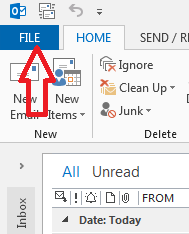
In Microsoft Office Outlook 2013, click on File.
Now, choose Options from the drop menu.

Then, click on Calendar in the Outlook Options window. Once you are in the Calendar options, scroll down to the extreme down where you will find the sub heading ‘Weather.’ Here, you can choose which temperature unit is to be displayed - degree Fahrenheit or degree Celsius.

You can also disable the weather on your Microsoft Office Outlook 2013 Calendar here, but that would be little foolish to do – even if you do not use it, why not keep it there, in case you need it sometime, for a quick update or such…
Hope you liked this. Let us know, if you got benefitted by this article.
Cheers!
One of the features that I found great and was missing in the earlier versions of the Microsoft Office Outlook is Weather forecast in the Outlook Calendar. It looks like this:

When you open the calendar in your Microsoft Office Outlook 2013, you will find this weather bar, where you can see the weather of today and forecast for the next two days, as default. Check it out, if you have not seen it yet.
You can add new locations, based on your needs and can select anyone at one time. Every time you open calendar in Microsoft Office Outlook 2013, you will be able to see the weather bar. Apart from the maximum and minimum temperatures, it also tells you about the Average Wind Speed, Humidity, and Precipitation and, whether the day will be cloudy, sunny and rainy or anything else. I quickly set it to the city I stay in and it gives me the information quickly.
However, one thing I could not get at the first attempt was to change the temperature units – degree Fahrenheit (which is default) to degree Celsius (which we follow in our country). After going through a few trial and errors, I got to know how to change the temperature units from degree Fahrenheit to degree Celsius. So, here are the steps that you can follow to do so:
In Microsoft Office Outlook 2013, click on File.

Now, choose Options from the drop menu.

Then, click on Calendar in the Outlook Options window. Once you are in the Calendar options, scroll down to the extreme down where you will find the sub heading ‘Weather.’ Here, you can choose which temperature unit is to be displayed - degree Fahrenheit or degree Celsius.

You can also disable the weather on your Microsoft Office Outlook 2013 Calendar here, but that would be little foolish to do – even if you do not use it, why not keep it there, in case you need it sometime, for a quick update or such…
Hope you liked this. Let us know, if you got benefitted by this article.
Cheers!


 Posts
Posts


